Get in Touch
Your Trusted Manufacturer of Laptops & Tablets
WhatsApp Us Directly
+86 13923410269
Email Us
Get in Touch
Your Trusted Manufacturer of Laptops & Tablets

You finally got that portable monitor you've been wanting. In your mind, it's the ultimate tool for mobile work, a game-changer for your Nintendo Switch, and a way to turn your phone into a productivity powerhouse. But when you eagerly connect it to your laptop with a Type-C cable, the screen stays stubbornly black. Or maybe an image appears, but it flickers wildly with strange buzzing sounds. In that moment, the perfect digital life you imagined cracks.
Don't panic—you're not alone. From tech enthusiasts to everyday users, almost everyone who owns a portable monitor has stumbled into various ‘potholes’when trying to connect it. As a tech editor who has endured countless failed connections, scoured endless forum posts, and ‘persecuted’manufacturer support teams, I know exactly how frustrating these issues are. Today, let's do a comprehensive check. We'll systematically sort out the common problems when connecting portable monitors to various devices and provide clear solutions for each one.
Connecting a portable monitor is essentially a precise negotiation between three parties: the signal source your device, the transmission cable, and the monitor itself. If any one of them doesn't speak the right language or lacks sufficient energy power, the connection fails.
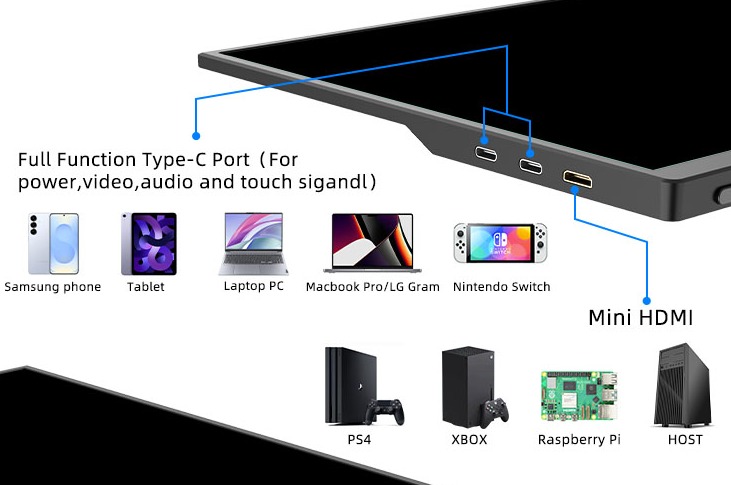
The most common culprit is a major misunderstanding caused by the name ‘Type-C.' Many people assume that any Type-C port will work if you just plug it in. The reality is that Type-C is just a physical shape, and underneath it lies many different capabilities:
The Type-C port on your laptop, phone, and monitor, plus the cable you're using, must all support this full-featured protocol for the screen to light up. This is the foundation of all problems.
Let's get practical. Find your issue below.
Scenario: You connect your laptop or phone to the monitor using a USB-C to USB-C cable. The monitor's power indicator lights up confirming it has power, but the screen itself remains completely black with no image.
Diagnosis & Step-by-Step Fixes ,Try in Order:
① Check the Source Output Setting – The Most Common Oversight:
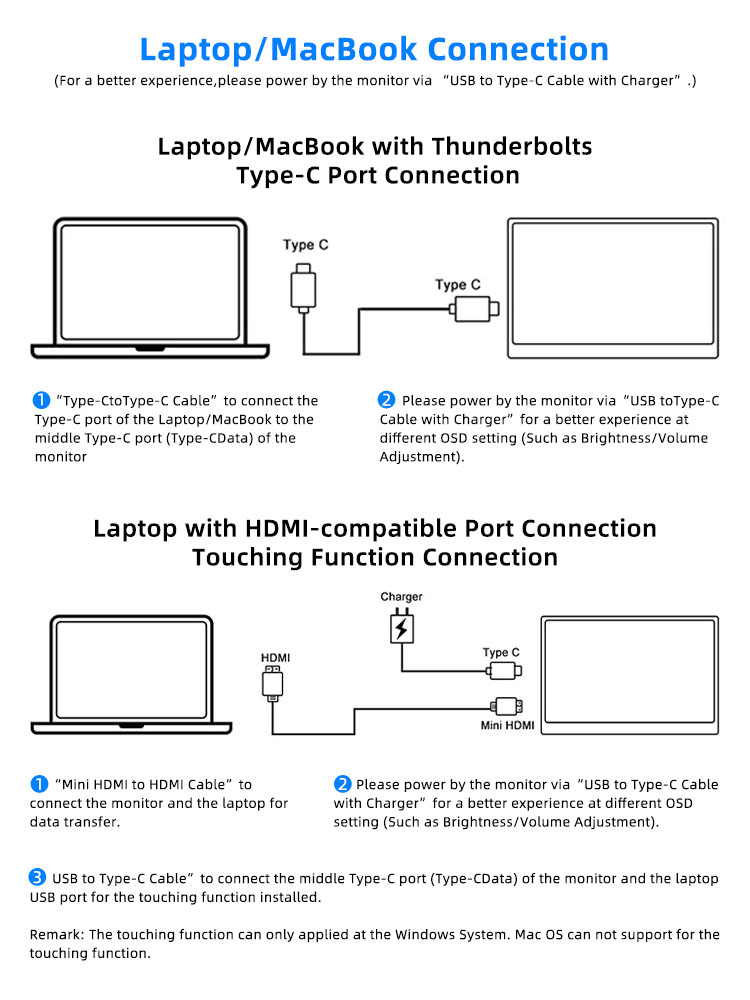
Windows Laptop: Press the Win + P keys. This brings up the projection mode menu. The default is often ‘PC screen only.’You need to select ‘Duplicate’ or ‘Extend.’
Mac Laptop: Go to System Settings > Displays. See if it detects the external monitor and configure the arrangement and resolution there.
Android Phone Samsung, Huawei, etc.: After connecting, pull down the notification shade. There is usually a prompt to tap Switch to desktop mode or Start Samsung Dex. Some phones require you to manually enable an option like USB tethering in the settings.
② Identify the Main Culprit – The Cable:
This is the single most frequent point of failure. You must use a full-featured USB-C cable that supports video transmission.
Do not use your phone's original charging cable: Most included USB-C cables only support charging and data, not video.
Look for certification labels: Quality full-featured cables are often marked with Supports 4K Video,DP Alt Mode,or have labels like 40Gbps or Thunderbolt 3/4,Thunderbolt cables are compatible.
The simplest method: Use the cable that came with your portable monitor. If the original cable doesn't work, then investigate other causes.
③ Confirm Port Capabilities:

Check your laptop's USB-C port: Not all USB-C ports on a laptop can output video. Check your manual or look for a tiny DP or Thunderbolt symbol next to the port. If it's missing, that port likely cannot output video. Try a different USB-C port.
Check your monitor's USB-C ports: Portable monitors usually have two USB-C ports. One is labeled Full-featured or Signal In,while the other might be for Power In only. Plugging into the wrong port will result in a black screen. Consult the manual carefully.
Scenario: The screen turns on, but the image is abnormal. You might see stripes, experience intermittent blackouts, or the resolution is extremely low, resembling a pixelated retro video game.
Diagnosis & Solutions:
① Poor Cable Quality or Insufficient Bandwidth:
Even a cable that lights up the screen can cause issues if it's low quality, poorly shielded, or an old version e.g., only USB 2.0. This leads to an unstable signal incapable of handling high resolutions or refresh rates.
Fix: Replace it with a higher-quality, higher-specification cable e.g., one that supports USB 3.2 Gen 2 or Thunderbolt 4.
② Outdated Graphics Drivers:
Windows Systems: Especially on laptops with dedicated NVIDIA or AMD graphics cards, outdated drivers are a common cause of external display problems.
Fix: Visit the graphics card manufacturer's website NVIDIA, AMD, or Intel to download and install the latest official driver. Do not rely solely on Windows Update.
Mac Systems: Ensure your macOS is updated to the latest version.
③ Monitor Driver Board or EDID Information Issue More Technical:
The monitor communicates its supported resolutions and refresh rates to your computer via Extended Display Identification Data . If this information is corrupted or has poor compatibility, the computer cannot match the correct settings.
Fix: In your computer's display settings, manually try adjusting the resolution and refresh rate e.g., switch from 60Hz to 50Hz. Sometimes, you may need to access the monitor's On-Screen Display menu to perform a factory reset or select a different input source mode e.g., change from Auto to Type-C.
Scenario: After connecting, your device laptop displays a low-power warning, or the monitor screen goes black and may show a warning symbol like a lightning bolt.
Diagnosis & Solution:
This is a classic power delivery negotiation issue. When you connect your laptop and monitor with a single cable, the direction of power flow can vary.
Ideal Scenario: The laptop has a sufficiently powerful adapter e.g., 65W or higher and can power itself and provide power to the monitor through the same cable.
Problem Scenario: The laptop itself is power-hungry like a high-performance gaming laptop or its power adapter is already operating at its limit. When it tries to also power the monitor, its own system can be drained, triggering a protective shutdown.
Another Scenario: You try to charge your phone/tablet from the monitor's USB-C port, but the monitor itself is underpowered e.g., plugged into only a 30W charger, causing the entire power chain to fail.
Solution: Provide the portable monitor with its own dedicated, sufficiently powerful Power Delivery charger. For example, plug a 65-watt or higher PD charger into the monitor's secondary USB-C port or dedicated power input often next to the Mini HDMI port. This allows the monitor to draw power independently, eliminating competition for power with your laptop. This creates the most stable system and may even allow the monitor to provide a small amount of power back to your laptop.
Scenario: When watching videos or playing games, the audio continues to play from your laptop or phone speakers. The portable monitor's built-in speakers remain silent.
Diagnosis & Solution:
① System Audio Output Device is Not Switched:
Windows: Right-click the volume/speaker icon in the taskbar's system tray, select Sound settings, and under the Output section, choose your portable monitor from the dropdown menu it is typically recognized as an audio device, e.g., USB Audio Device.
Mac: Click the sound/volume icon in the top menu bar. From the list of output devices that appears, select your portable monitor.
Mobile Devices e.g., Samsung DeX: After connecting to desktop mode, navigate to your device's sound/audio settings menu to select the correct output device.
② Cable or Port Does Not Support Audio Transmission :
An extremely old or low-quality full-featured cable may only transmit the video signal.
Solution: Try replacing it with a different, reliable cable that is confirmed to support audio transmission.
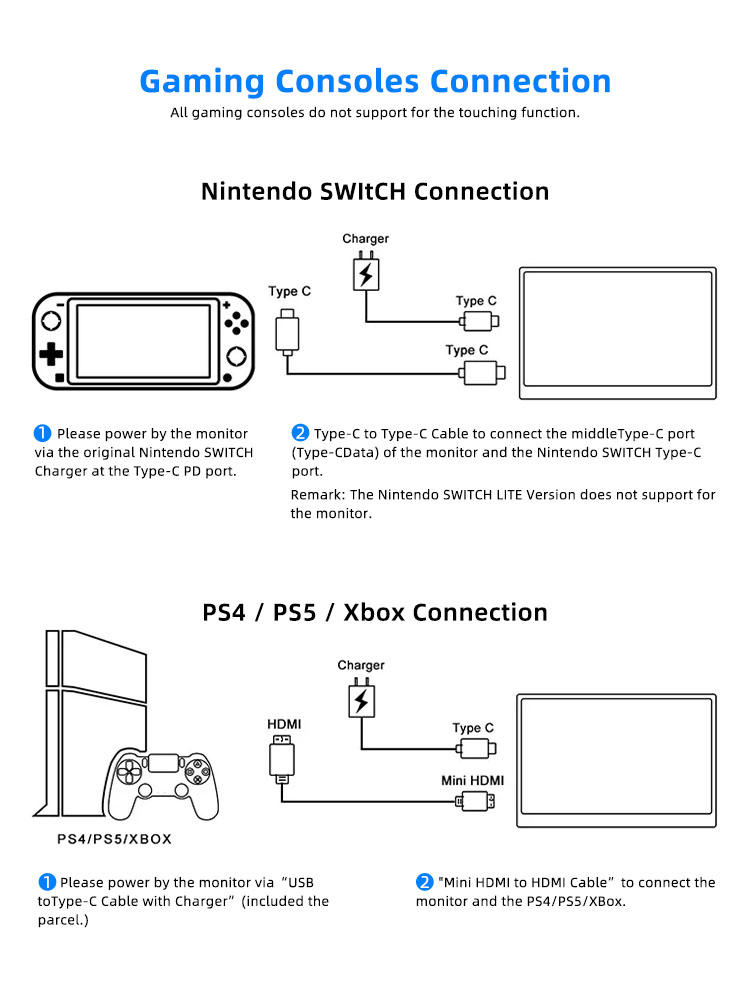
Scenario: You connect your Nintendo Switch directly to the portable monitor with a USB-C to USB-C cable. The Switch's screen turns off, but the monitor displays only the handheld mode image with black borders, not the full-screen TV mode.
Diagnosis & Solution:
This is a specific compatibility issue with the Nintendo Switch. Although the Switch's USB-C port supports DisplayPort output, its requirements for the PD protocol handshake are particular.
Root Cause: The portable monitor may not be providing the Switch with a sufficiently stable and standards-compliant PD power profile—specifically, the 15V/2.6A level—required to trigger TV mode activation.
Solution:
Primary Prevention: Before purchasing, you must confirm that the portable monitor's product page explicitly states it Supports Nintendo Switch TV mode via one-cable connection often marketed as Switch-ready.
If Already Purchased and It Doesn't Work:
First, try connecting a sufficiently powerful external PD charger also supporting the 15V profile to the portable monitor. Sometimes, this stabilizes the power environment and may work.
However, the more reliable solution is to use a dedicated Switch Portable Dock or adapter a small converter box. Connect your Switch's official power adapter to this dock, and then use a standard HDMI cable to connect the dock to the monitor's HDMI port. While this loses the simplicity of the one-cable setup, it almost guarantees a 100% working TV mode.
When you're stuck, use this list. It solves over 90% of connection issues.

Before You Buy:
When Connecting ,Follow this order:
As a highly integrated product, connection issues with a portable monitor are essentially a mini-war over compatibility. It tests not your technical skills, but your patience and systematic troubleshooting approach.
Remember this core principle: Power first, signal second. Cable first, settings second. Drivers first, hardware second. Most problems are at the front end, not a defect in the device itself.
When you follow these steps, systematically troubleshoot, and finally see that perfect image appear on your extended screen, the sense of accomplishment might be just as satisfying as the convenience the portable monitor brings. May your connections be seamless, and may you fully enjoy the efficiency and immersion of your new, larger screen.
Industry-Specific Solutions
Latest Blog

AI Compute Box Bulk Procurement: 3C, CE, FCC Certification Guide
Learn the key certification requirements for bulk buying AI compute boxes. Covers 3C, CE, FCC compliance, common pitfalls, and how to verify certificates to avoid legal risks.

RK3588 vs N100: Which Is Better for Local LLM Deployment?
Compare RK3588 and N100 for running local LLMs. See real-world token speeds, power, memory, software support, and which chip fits your AI workload.

Edge AI Box vs Cloud Server:Which Is Cheaper Long-Term?
A detailed TCO comparison of edge AI boxes and cloud servers. Covers hardware, bandwidth, power, and O&M costs, with break-even analysis and a decision checklist.
What AI Mini PC Do You Need for Private Local LLM Deployment?
Learn what AI mini PC specs you need for private deployment of local LLMs: memory, NPU, storage, offline capability, and configuration recommendations for 7B–70B models.
Adreamer

© 2012-2025 Copyright Shenzhen Adreamer Technology Co., Ltd.粤ICP备18115621号-2
Contact Adreamer Today for Your Custom Solution & Quote!
© 2012-2025 Copyright Shenzhen Adreamer Technology Co., Ltd.粤ICP备18115621号-2