Get in Touch
Your Trusted Manufacturer of Laptops & Tablets
WhatsApp Us Directly
+86 13923410269
Email Us
Get in Touch
Your Trusted Manufacturer of Laptops & Tablets

The setup takes around twenty minutes. The first time you see a local model generating text on your own machine—no internet connection, no API key, no per-token billing—it feels entirely different from calling ChatGPT or Claude. That’s the moment most people get hooked.
This guide walks through running a 7B-parameter model (Llama 3.1, Qwen 2.5, or DeepSeek-V2-Lite) on a standard AI-capable mini PC. No cloud dependencies, no complex cluster configurations, and no prior machine learning experience required.
A 7B model has roughly seven billion parameters. In quantized form (specifically Q4_K_M, which offers a solid balance between quality and resource usage), the model file takes up about 4.2 to 4.5 gigabytes of storage. But here’s the part that trips up most beginners: running it requires far more RAM than the file size suggests.
The inference process needs to keep the entire model in memory while also allocating space for the context window—the conversation history, system prompts, and any documents you feed in. For a 7B model with a standard 8,192-token context, you’ll need at least 8GB of free RAM just to get it running. Realistically, 16GB total system memory is the absolute minimum; 32GB gives you breathing room; 64GB lets you run multiple models or expand to larger 14B models later.
If your AI PC has integrated graphics (most mini PCs do), the iGPU will use system RAM as video memory. This adds additional pressure. The sweet spot for a smooth 7B experience is a Ryzen 7 8845HS or Core Ultra 7 processor paired with 32GB of dual-channel DDR5 memory.
You have two main options for running models locally, and the choice largely comes down to whether you prefer a graphical interface or a command-line workflow.
Option A: Ollama (Command-Line, Lightweight, Community Favorite)
Ollama is the most beginner-friendly tool for running open-source models. It handles the heavy lifting—downloading the model, optimizing it for your hardware, and exposing it as a local API server. The installation is a single command, and the entire ecosystem revolves around a handful of straightforward terminal operations.
The main advantage is simplicity. You don’t need to configure Python environments, deal with CUDA version mismatches, or manually convert model weights. Ollama does all of that behind the scenes.
Option B: LM Studio (Graphical Interface, Great for Experimentation)
LM Studio provides a polished desktop application with a built-in chat interface, model download browser, and local server mode. If you’re coming from a background of using ChatGPT through a web browser, LM Studio will feel instantly familiar.
The downside is that LM Studio tends to consume slightly more system resources due to the GUI overhead. It also offers fewer advanced configuration options compared to Ollama’s command-line flags.
Recommendation for first-timers: Start with Ollama. It takes up fewer resources, integrates seamlessly with other tools (like Open WebUI or Continue for code editors), and the terminal commands become second nature within minutes. If you absolutely cannot stand the terminal, LM Studio is a perfectly viable alternative.
If you’re running Windows, download the installer from the Ollama website and run it. On Linux (Ubuntu/Debian), the terminal command is straightforward:
bash
curl -fsSL https://ollama.com/install.sh | sh
The script detects your operating system, installs the necessary dependencies, and starts the Ollama service in the background. Once completed, you can verify the installation by typing:
bash
ollama --version
You should see a version number, confirming that the service is up and running.
For macOS users: The process is similar via Homebrew or direct download, though this guide assumes a standard x86_64 AI PC running Windows or Ubuntu.
Ollama maintains a library of pre-quantized models. To download a 7B parameter model, use the pull command:
bash
ollama pull llama3.1:8b
This downloads the 8-billion-parameter version of Meta’s Llama 3.1. The file is approximately 4.5 gigabytes compressed, so expect a 10-20 minute download depending on your internet speed.
Alternatives worth considering:
To pull these instead, use:
bash
ollama pull qwen2.5:7b
or
bash
ollama pull deepseek-v2-lite:16b
(Note: DeepSeek-V2-Lite is technically a 16B model, which pushes the boundaries of what a 7B-class machine can handle. Stick with Llama or Qwen for your first run.)
With the model downloaded, starting it is as simple as:
bash
ollama run llama3.1:8b
The terminal changes into an interactive chat session. Type a prompt and hit Enter:
text
>> What is the capital of France?
The model will begin generating a response. On a Ryzen 7 8845HS with 32GB of RAM, you should see output flowing at roughly 12-14 tokens per second. That’s fast enough for conversational, real-time interaction.
To exit the chat session, type /bye or press Ctrl+D.
By default, Ollama sets a moderate context window size. For extended conversations, code analysis, or document Q&A, you’ll want to increase this.
Create a custom model configuration file:
bash
ollama create my-llama -f ./Modelfile
Inside Modelfile, you can adjust key parameters:
text
FROM llama3.1:8b
PARAMETER num_ctx 16384
PARAMETER temperature 0.7
PARAMETER top_p 0.9
num_ctx controls how many tokens the model remembers. Setting it to 16384 (16k tokens) keeps previous chat turns in memory, preventing the model from “forgetting” earlier parts of the conversation. However, larger contexts consume more RAM—monitor your system usage to avoid swapping.
One of the most powerful features of Ollama is its built-in API server. By default, it runs on port 11434. This means any application—whether it’s a custom Python script, Open WebUI, or an IDE plugin—can send requests to your local model.
Test the API endpoint with a simple curl command:
bash
curl http://localhost:11434/api/generate -d '{
  'model': 'llama3.1:8b',
  'prompt': 'Explain the concept of retrieval-augmented generation in one sentence.',
  'stream': false
}'
If you receive a JSON response with the generated text, your local inference setup is fully operational and can be integrated into any workflow.
After running a few prompts, it’s worth checking how well your hardware is handling the load.
Check token generation speed: After any prompt, Ollama displays the speed in tokens per second. Anything above 10 t/s is excellent for interactive use. If you’re dropping below 5 t/s, the model is running into memory bandwidth constraints.
Reduce system load: Close unnecessary background applications, especially web browsers with multiple tabs. Each open tab consumes system memory that could otherwise serve the model’s context cache.
Set a power limit (for sustained workloads): On some mini PCs, high-performance mode causes thermal throttling after several minutes. If you notice the fan ramping up aggressively and speed dropping, consider setting a moderate TDP limit (e.g., 35W) in your BIOS. The tradeoff is a slight decrease in peak speed, but consistent performance over longer sessions.
“Model fails to load or runs extremely slowly.”
Check your available system RAM. If you only have 16GB total, roughly half may be consumed by the operating system and background processes, leaving barely enough for a 7B model with a non-trivial context window. Consider upgrading to 32GB or switching to a smaller 3B model.
“The command returns ‘no such model.’”
The model name must match exactly what’s in Ollama’s library. Use ollama list to see what’s already downloaded, and ollama pull to fetch the correct version.
“The model replies, but responses seem incoherent after a few exchanges.”
Your context window is likely saturated. Use /clear in the chat session to reset history, or start a new session with a larger num_ctx parameter.
“LM Studio shows no compatible GPU.”
On most mini PCs, the integrated GPU is automatically detected. If not, update your graphics drivers. Intel Arc iGPUs and AMD Radeon 780M both support the required OpenCL or Vulkan backends.
Once you have a working local 7B model, the real value comes from integrating it into your daily tools:
A 7B model is roughly the size of GPT-3.5-turbo, but a few years behind in refinement. It handles general knowledge, summarization, code generation, and instruction-following tasks competently. It will not match GPT-4 on complex reasoning, advanced mathematics, or multi-step planning.
That said, for a setup running entirely on a sub-$600 mini PC with zero ongoing costs, the tradeoff is entirely acceptable. The privacy and latency benefits are substantial—once the model is running, every subsequent query returns in under a second, with no data leaving your network.
For those who want their local model available 24/7 without manual restarting, set Ollama to start automatically with your operating system. On Ubuntu, this is achieved with a systemd service. On Windows, you can add Ollama to the startup folder or use the Task Scheduler.
Once configured, your AI PC becomes a dedicated local inference server that responds to API requests from any device on your home or office network. That’s the ultimate destination of this guide: not just running a model, but building a private, self-hosted AI endpoint that never sends a single token to the cloud.
Run your first prompt today. The next time someone mentions API costs, you’ll know exactly what they’re talking about—and you’ll have already moved past it.
Industry-Specific Solutions
Latest Blog

Celeron N5095 vs N100 vs N305: White-Label Laptop CPU Guide
Celeron N5095 or Intel N100/N305? Compare architecture, iGPU, memory support, power limits, and real-world performance to choose the right white-label laptop.

White-Label Laptops Explained: What They Are & Should You Buy?
Learn what a white-label laptop is, how it differs from knockoffs, barebones, and private-label models. Covers pros, cons, risks, and a practical buying guide for budget buyers.

AMD Ryzen AI Max 395 Mini PC: Worth It? Pros, Cons & Benchmarks
Is the Ryzen AI Max 395 mini PC worth the price? See real-world LLM inference, gaming, power, noise, and pros/cons to decide if this 128GB AI workstation fits your needs.
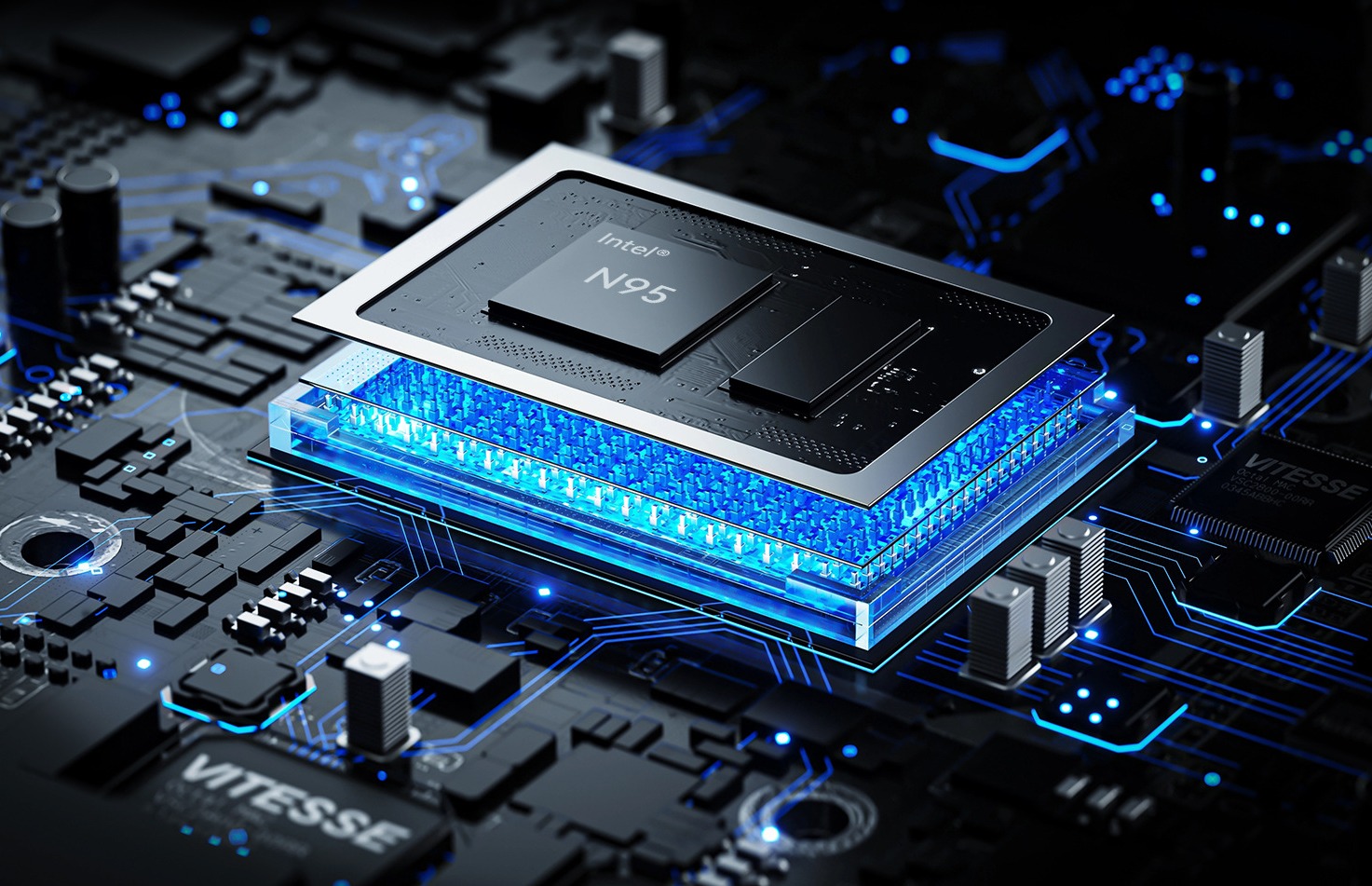
N100 vs N95 Mini PC Performance Comparison
Compare Intel N100 vs N95 mini PCs. See CPU, iGPU, TDP, power draw, gaming, and NAS performance—plus clear buying advice for office, soft router, and light gaming.
Adreamer

© 2012-2025 Copyright Shenzhen Adreamer Technology Co., Ltd.粤ICP备18115621号-2
Contact Adreamer Today for Your Custom Solution & Quote!
© 2012-2025 Copyright Shenzhen Adreamer Technology Co., Ltd.粤ICP备18115621号-2