Get in Touch
Your Trusted Manufacturer of Laptops & Tablets
WhatsApp Us Directly
+86 13923410269
Email Us
Get in Touch
Your Trusted Manufacturer of Laptops & Tablets

Buying 500 student laptops for a school is completely different from buying 500 office laptops for a company. Buying a laptop for your child going to university is also very different from buying one for yourself to stream shows and play games.
The education scenario has its own hard constraints: students may stuff laptops into backpacks and squeeze onto public buses, do homework next to a water bottle, study offline in classrooms without Wi‑Fi, and use the same device for three or four years without replacing it. School computer labs need batch deployment, unified management, anti‑distraction controls, tamper resistance, and fast after‑sales response. Teacher devices must also support lesson preparation, presentations, lecture recording, and multi‑screen interaction.
Buy wrong, and students suffer from lag, batteries that die after two classes, and screens that strain their eyes. Schools face batch failures, after‑sales disputes, software that won’t install, and out‑of‑control device management.
This article does not list specific models. Instead, it gives you a selection framework for educational laptops. Whether you are a school procurement manager, IT administrator, teacher, or parent choosing a computer for your child, use this guide to compare products and avoid most pitfalls.
Many people think, “Isn’t a student laptop just a cheaper ordinary laptop?” That is the biggest misconception. The hardware requirements of education scenarios are fundamentally different from ordinary office and entertainment use.
| Comparison Dimension | Ordinary Consumer Laptop | Educational Laptop |
|---|---|---|
| Durability | Light daily use; a 1‑meter drop may crack the screen | Must pass drop, vibration, and keyboard spill tests |
| Eye protection | High color gamut and high refresh rate prioritized | Low blue light, flicker‑free, anti‑glare prioritized |
| Battery life | 4–6 hours is enough | Must last a full school day (8+ hours) |
| Manageability | Personal use; no centralized management | Must support batch deployment, remote management, app control |
| System cleanliness | Pre‑loaded with consumer software | Clean system; ability to disable games, social apps, install permissions |
| After‑sales response | Individual mail‑in; acceptable turnaround | Localized fast response; replacement units |
| Ports | Thin‑and‑light prioritized; ports minimized | Must retain USB‑A, HDMI, headphone jack and other teaching ports |
| Keyboard | Feel prioritized | Spill‑resistant, wear‑resistant, keycaps not easily detached |
An educational laptop is not a “low‑spec consumer laptop.” It is a durable device redesigned for learning scenarios. Choosing an educational laptop with a consumer‑laptop mindset will fail somewhere.
CPU needs for student teaching scenarios are completely different from gaming or video editing. Daily learning mainly involves web browsing, Office documents, online classes, PDF reading, light programming, and teaching software.
| Use Scenario | Recommended CPU Tier | Notes |
|---|---|---|
| Primary/middle school daily learning | Intel N100/N200 or Core i3 | Enough for online classes, documents, browser |
| High school/university liberal arts | Core i5 / Ryzen 5 | Multitasking, light data processing |
| Engineering/design/programming | Core i5/i7 / Ryzen 7 | Needs to run IDE, CAD, simulation software |
| Teacher lesson prep/recording | Core i5 / Ryzen 5 or above | Multi‑screen output, video conferencing |
Pitfall avoidance: Do not blindly chase the latest generation. For educational laptops, prioritize platforms with stable supply, mature drivers, and long BSP support cycles. 13th Gen Core or Ryzen 7000 series remain highly cost‑effective choices in 2026.
| Memory Capacity | Suitable Scenario | Recommendation |
|---|---|---|
| 8GB | Extremely light use only | Not recommended; lags with a few browser tabs |
| 16GB | Daily learning, online classes, documents | Minimum recommendation for 2026 |
| 32GB | Programming, design, multitasking | Recommended for engineering/design majors |
Key note: Many educational laptops have soldered onboard memory—whatever capacity you buy is what you get, with no future upgrade. Choose 16GB from the start rather than saving $30–$50 with 8GB.
| Storage Capacity | Suitable Scenario |
|---|---|
| 128GB | Only enough for OS and a few documents—not recommended |
| 256GB | Enough for daily learning, but tight with several large software installations |
| 512GB | Recommended starting point; holds teaching software, materials, cache |
| 1TB | Needed for design/programming/video courses |
Note: Prioritize NVMe SSD, not eMMC. eMMC read/write speeds degrade noticeably after long‑term use, affecting system responsiveness.
Students stare at screens for hours every day; screen quality directly affects eye health.
| Parameter | Educational Scenario Recommendation | Reason |
|---|---|---|
| Resolution | 1920×1080 and above | Below 1080p causes eye fatigue when reading documents |
| Low blue light | Must have | Reduces harmful blue light |
| Flicker‑free | DC dimming or high‑frequency PWM | Low‑frequency PWM harms eyes |
| Anti‑glare | Matte screen preferred | No reflections under classroom lighting |
| Brightness | 300 nits or above | Classrooms/libraries are relatively bright |
| Touch | Choose as needed | K12 interactive teaching may require it |
Pitfall avoidance: “High color gamut” is not essential for educational laptops, but “low blue light + flicker‑free + anti‑glare” is. Before buying, check whether the screen has TÜV Rheinland eye comfort certification or another authoritative eye‑protection certification.
| Test Item | Common Consumer Laptop Level | Recommended Educational Laptop Standard |
|---|---|---|
| Drop test | None or 76cm | 1 meter or more (MIL‑STD‑810G/H) |
| Keyboard spill resistance | None | At least 100ml liquid spill without damage |
| Hinge life | 20,000 cycles | 30,000+ cycles |
| Port insertion/extraction | 5,000 cycles | 10,000+ cycles |
| Casing material | Standard ABS | Reinforced ABS + rubber corner bumpers or aluminum alloy |
Procurement advice: For bulk purchases, require suppliers to provide third‑party reliability test reports. K12 scenarios (younger students, rougher use) especially need drop and spill protection.
| Battery Capacity | Typical Endurance | Suitable Scenario |
|---|---|---|
| Below 40Wh | 4–5 hours | Not recommended; won’t last half a day |
| 50–60Wh | 6–8 hours | Basically enough for daily learning |
| 70Wh+ | 8–10 hours | Recommended for all‑day unplugged use |
Key note: Manufacturer‑rated battery life is usually based on “light video playback.” Actual learning scenarios (multiple web pages + online classes + documents) will be about 70% of the rated figure. Estimate actual usage time at 70% of rated endurance.
| Port/Function | Necessity in Education | Notes |
|---|---|---|
| USB‑A | Must retain at least 1 | USB drive for homework, mouse, visualizer |
| HDMI | Strongly recommended | Connect to classroom projector/large screen |
| 3.5mm headphone jack | Must retain | Online classes, listening exercises, library use |
| USB‑C | Recommended | Charging, data transfer |
| RJ45 Ethernet | May be needed in labs/exam rooms | Wired network is more stable |
| Wi‑Fi 6 | Recommended | More stable when many users connect simultaneously |
| Bluetooth | Recommended | Connect headphones, keyboard |
Pitfall avoidance: Many thin‑and‑light laptops sacrifice USB‑A and HDMI in pursuit of “all USB‑C.” This is a disaster in education—the teacher asks you to present, and you find no HDMI port; you need to submit homework on a USB drive, and you find no USB‑A port.
For school bulk purchases, the following capabilities matter more than hardware specs:
| Management Need | Notes |
|---|---|
| Batch system deployment | Supports network cloning, batch flashing of unified images |
| Application control | Can disable games, social apps, installation permissions |
| Remote management | Supports remote lock, shutdown, restart, push notifications |
| Restore protection | Restores to initial state after reboot (common in labs) |
| Asset tagging | Supports asset numbering and QR code management |
| System version lock | Locks Android/Windows version to prevent automatic updates from affecting teaching software |
| Configuration Item | Recommended Configuration |
|---|---|
| CPU | Intel N100/N200 or Core i3 |
| Memory | 16GB |
| Storage | 256GB NVMe SSD |
| Display | 11–14 inches, 1080p, low blue light + anti‑glare |
| Battery | 50Wh+, 6+ hours endurance |
| Durability | 1‑meter drop, spill‑resistant keyboard, rubber corner bumpers |
| Ports | USB‑A ×2, HDMI, headphone jack |
| Management | Supports app control, restore protection |
| Budget Reference | $350–$560 |
Focus: K12 student devices prioritize durability and manageability; performance does not need to be high. Eye‑protection screen and spill‑resistant keyboard are essential.
| Configuration Item | Recommended Configuration |
|---|---|
| CPU | Core i5 / Ryzen 5 |
| Memory | 16GB (preferably upgradable) |
| Storage | 512GB NVMe SSD |
| Display | 14 inches, 1080p or 2K, eye‑protection certification |
| Battery | 60Wh+, 8 hours endurance |
| Ports | USB‑A, USB‑C, HDMI, headphone jack |
| Budget Reference | $560–$830 |
Focus: This tier must balance portability, battery life, and multitasking. Online classes, documents, and multiple browser tabs are the norm; 16GB memory is the baseline.
| Configuration Item | Recommended Configuration |
|---|---|
| CPU | Core i7 / Ryzen 7 |
| Memory | 32GB (or 16GB upgradable) |
| Storage | 1TB NVMe SSD |
| Display | 15–16 inches, 2K+, high color gamut |
| Graphics | Integrated graphics sufficient; discrete GPU recommended for 3D/CAD |
| Battery | 60Wh+ |
| Ports | Rich ports, preferably RJ45 |
| Budget Reference | $830–$1,250 |
Focus: Programming, CAD, and simulation software demand high memory and storage, and CPU performance must be adequate. If 3D modeling or video rendering is involved, consider models with a discrete GPU.
| Configuration Item | Recommended Configuration |
|---|---|
| CPU | Core i5/i7 / Ryzen 5/7 |
| Memory | 16–32GB |
| Storage | 512GB–1TB |
| Display | 14–15 inches, eye protection, multi‑screen output support |
| Ports | HDMI, USB‑A, USB‑C, headphone jack |
| Network | Wi‑Fi 6; wired Ethernet port preferred |
| Management | Supports remote maintenance, batch deployment |
| Budget Reference | $690–$1,110 |
Focus: Teacher devices need strong multitasking, rich ports, and high stability. Lesson preparation, lecture recording, live streaming, and multi‑screen presentations are routine.
| Requirement | Recommendation |
|---|---|
| Unified configuration | Same model and configuration to reduce maintenance complexity |
| Restore protection | Must support restore‑on‑reboot (hardware restore card or software restore) |
| Batch deployment | Supports network cloning/batch imaging |
| Management software | Supports remote management, app control, asset statistics |
| Durability | Spill‑resistant keyboard, reinforced ports, security lock slot |
| After‑sales | Localized service; 3%–5% spare unit ratio |
| Certification | CCC certification; certificate applicant preferably the school or buyer |
| Budget Tier | Target User | CPU | Memory | Storage | Display | Durability | Typical Use |
|---|---|---|---|---|---|---|---|
| $350–$490 | K12 basic | N100/i3 | 16GB | 256GB | 1080p eye protection | 1‑m drop + spill resistant | Online classes, documents, browser |
| $490–$690 | High school/liberal arts | i5/Ryzen 5 | 16GB | 512GB | 1080p/2K eye protection | Basic durability | Multitasking, online classes |
| $690–$970 | Engineering/teacher | i5/i7/Ryzen 7 | 16–32GB | 512GB–1TB | 2K high color gamut | Reinforced design | Programming, design, lecture recording |
| $970–$1,250 | Design/high performance | i7/Ryzen 7 + dGPU | 32GB | 1TB | 2K+ high color gamut | Military‑grade | 3D modeling, video editing |
| Lab bulk purchase | Unified management | i3/i5 | 8–16GB | 256GB | 1080p | Reinforced + anti‑theft | Lab teaching, exams |
Trap 1: Consumer laptops passed off as educational laptops.
Many suppliers take an ordinary consumer laptop, slap an “education edition” label on it, and sell it. How to tell: check for drop test reports, keyboard spill‑resistance certification, and eye‑protection certification. Without these, it is not a true educational laptop.
Trap 2: Soldered memory that cannot be upgraded.
A laptop with 8GB onboard memory is locked for life. In 2026, 16GB is the baseline for educational laptops. During procurement, confirm whether memory is expandable; if soldered, choose 16GB or more.
Trap 3: Fake battery life.
Claimed “10 hours of endurance” may actually die in 3 hours. Require suppliers to provide real‑world battery life test reports (mixed load of online video, document processing, and web browsing), not just lab data.
Trap 4: “Borrowed” certification certificates.
The applicant on the CCC certificate is not the school or buyer but the supplier. If audited, the school may face compliance risks. For bulk purchases, require certificates to be derived under the buyer’s name, or at least clearly state that the supplier bears compliance responsibility.
Trap 5: Slow after‑sales response.
Educational devices fear “broken with no one to repair.” Bulk procurement contracts must specify:
Trap 6: A pile of junk pre‑installed software.
Consumer laptops pre‑loaded with games, trial software, and promotional pop‑ups are a disaster in education. Require suppliers to provide a clean system image or support batch flashing of school‑customized images.
Q1: For student laptops, how to choose between Windows, macOS, and ChromeOS?
Recommendation: Prioritize Windows for K12 and most university majors; consider macOS for design majors; consider ChromeOS or domestic Linux systems for extremely low‑budget light scenarios.
Q2: Is a touchscreen necessary?
It depends on the teaching scenario. K12 interactive classrooms, younger students, and scenarios requiring handwritten notes may benefit from touchscreens. For high school and above, where documents and programming dominate, touchscreens are not essential—spend the budget on memory and storage instead.
Q3: For school bulk purchases, should we choose models with discrete GPUs?
Most teaching scenarios do not need a discrete GPU. Computer labs, ordinary classrooms, and liberal arts learning are fine with integrated graphics. Only design, film, 3D modeling, AI labs, and similar professional labs need discrete GPUs. Discrete GPUs increase cost, power consumption, and failure rates—do not choose them unless necessary.
Q4: Do educational laptops need extended warranties?
It is recommended. Student use environments are complex, and failure rates are higher than in office scenarios. For bulk purchases, extending the warranty from 1 year to 3 years adds little per‑unit cost but significantly reduces subsequent repair expenses and management burden.
Q5: How can I tell whether a laptop screen is truly eye‑friendly?
Check three indicators: ① TÜV Rheinland low blue light certification; ② DC dimming or flicker‑free support; ③ matte anti‑glare screen. All three together qualify as a true eye‑protection screen. Do not rely only on a software switch like “low blue light mode.”
Q6: With a limited budget, which configuration should I prioritize?
Priority: Memory (16GB) > Storage (512GB SSD) > Eye‑protection screen > Battery endurance > CPU performance. Memory and storage cannot be upgraded later, so choose them right from the start; CPU performance has relatively less impact on daily learning.
Industry-Specific Solutions
Latest Blog
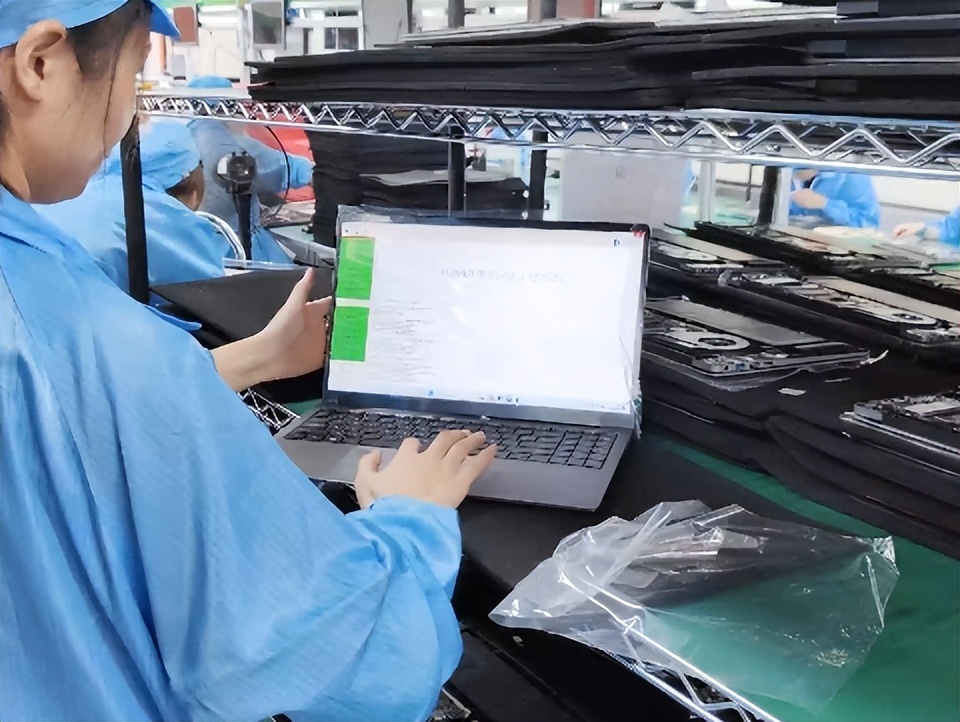
How to Choose an Educational Laptop: Specs, Durability & Budget
Learn how to choose the right educational laptop for K12, university, or teaching. Compare CPU, memory, screen, battery, ports, and management features by scenario.

What Is an Educational Laptop? A Buying Guide for Parents & Schools
What is an educational laptop and how is it different from a regular student laptop? Learn key features, buying criteria, and common mistakes for parents and schools.
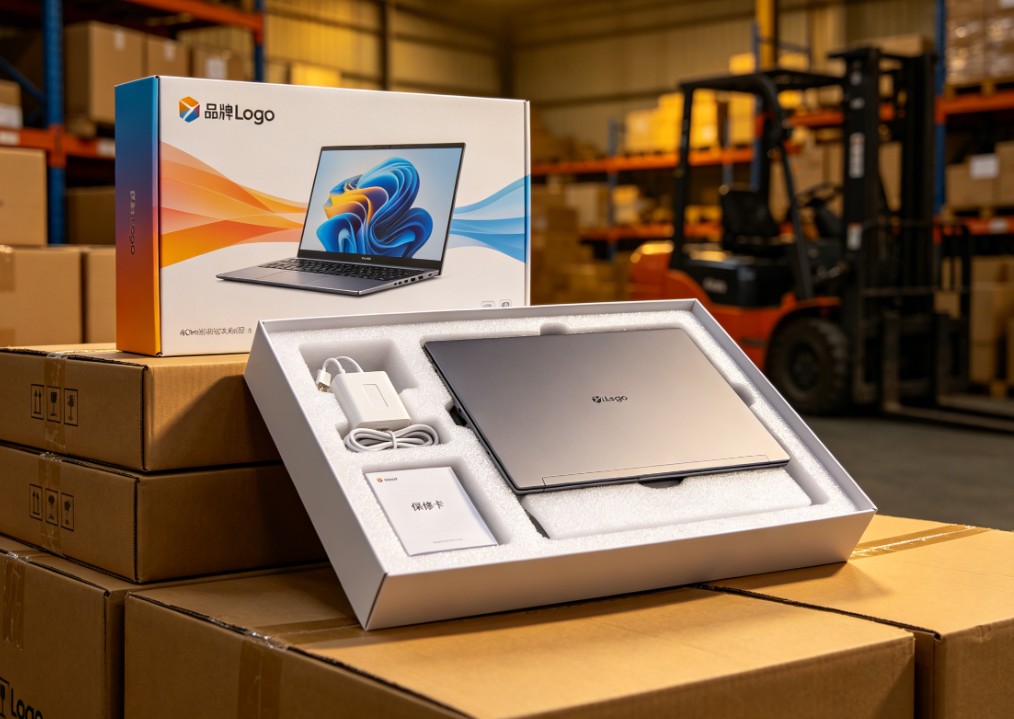
White-Label vs Neutral Laptops: Worth Buying? Pros, Cons & Guide
Should you buy white-label or neutral laptops in bulk? Learn the real pros and cons, quality-control risks, TCO calculation, sample inspection, and after-sales planning.

Celeron N5095 vs N100 vs N305: White-Label Laptop CPU Guide
Celeron N5095 or Intel N100/N305? Compare architecture, iGPU, memory support, power limits, and real-world performance to choose the right white-label laptop.
Adreamer

© 2012-2025 Copyright Shenzhen Adreamer Technology Co., Ltd.粤ICP备18115621号-2
Contact Adreamer Today for Your Custom Solution & Quote!
© 2012-2025 Copyright Shenzhen Adreamer Technology Co., Ltd.粤ICP备18115621号-2