Get in Touch
Your Trusted Manufacturer of Laptops & Tablets

WhatsApp Us Directly
+86 13923410269
Email Us
Get in Touch
Your Trusted Manufacturer of Laptops & Tablets

Ever felt cramped working on your 13-inch laptop screen, constantly switching between multiple windows? What if a simple trick could double your productivity? Adding a second monitor to your laptop is the answer. This might sound like a pro-level setup, but it's surprisingly easy to do, and the efficiency gains are incredible.
Before we dive into the 'how,' let's talk about the 'why.' Research shows that using a dual-screen setup can boost productivity by over 30%. This isn't just a guess; it's based on the real-world efficiency of multitasking.
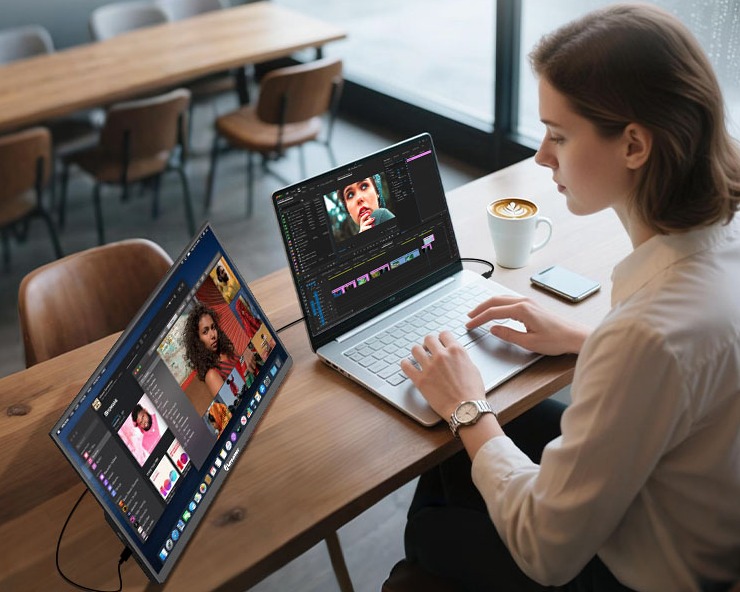
Imagine these scenarios: writing a report while referencing research, coding while checking documentation, or designing while viewing source materials. With a single screen, you waste time and mental energy switching windows. Studies in cognitive psychology indicate that it can take an average of 15 minutes to re-enter a state of deep focus after a single task switch.
A software developer's experience is telling: 'Coding on a single screen was exhausting. With a dual setup—code editor on the left, live preview and docs on the right—my workflow is smoother, and I rarely need to work late.' This sentiment is common among knowledge workers.
The benefits extend beyond work. For entertainment, dual screens let you game while browsing guides or watch a movie while chatting with friends—a seamless multi-tasking experience a single screen can't match.
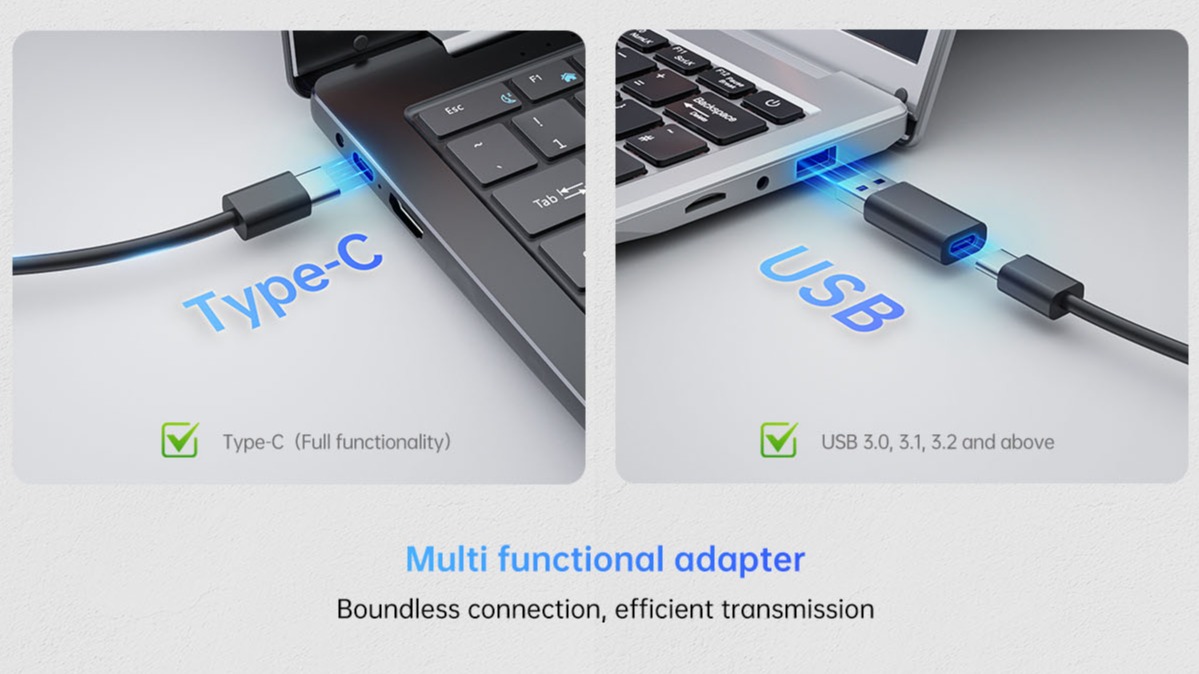
To connect a second monitor, first identify the video ports on your laptop. Modern laptops typically have one of the following:
Pro Tip for Cables: Cable quality matters. Don't skimp—choose branded cables. A length of 1.5-2 meters is ideal. For 4K monitors, ensure the cable supports high bandwidth.
Once connected, the software setup is straightforward.

Once set up, you can drag application windows between screens as if you had one ultra-wide monitor.
Different tasks call for different setups. Use the right mode for the job.

Extended Mode is the powerhouse for productivity. Your main task stays on one screen, with auxiliary tools on the other. Video editors can have their timeline on the main screen and bins/effects on the secondary. Traders can monitor live feeds on one screen and execute trades on the other.
Ergonomics are key. Place your primary monitor directly in front of you and the secondary to the side. Align their top edges and position them about 50-70 cm away to minimize neck strain when looking between them.
Duplicate Mode is built for sharing. Teachers can mirror their tablet to a classroom screen, and professionals can ensure clients see exactly what they see. Note: the system may select a common resolution, which might not be ideal for one of the displays.
Second Screen Only mode is great for focused work or when using a larger, superior external monitor. It also helps save your laptop's battery life.
Master these advanced tricks to get the most from your setup.

Here are quick fixes for frequent problems:
Tailor your setup to your profession:
Consider these factors when buying:
Adding a second monitor to your laptop is a simple, 10-minute upgrade that pays for itself in long-term productivity gains. Whether you're a student, programmer, designer, or general user, a dual-screen setup is a game-changer for your digital life.
Industry-Specific Solutions
Latest Blog

AI Compute Box Bulk Procurement: 3C, CE, FCC Certification Guide
Learn the key certification requirements for bulk buying AI compute boxes. Covers 3C, CE, FCC compliance, common pitfalls, and how to verify certificates to avoid legal risks.

RK3588 vs N100: Which Is Better for Local LLM Deployment?
Compare RK3588 and N100 for running local LLMs. See real-world token speeds, power, memory, software support, and which chip fits your AI workload.

Edge AI Box vs Cloud Server:Which Is Cheaper Long-Term?
A detailed TCO comparison of edge AI boxes and cloud servers. Covers hardware, bandwidth, power, and O&M costs, with break-even analysis and a decision checklist.
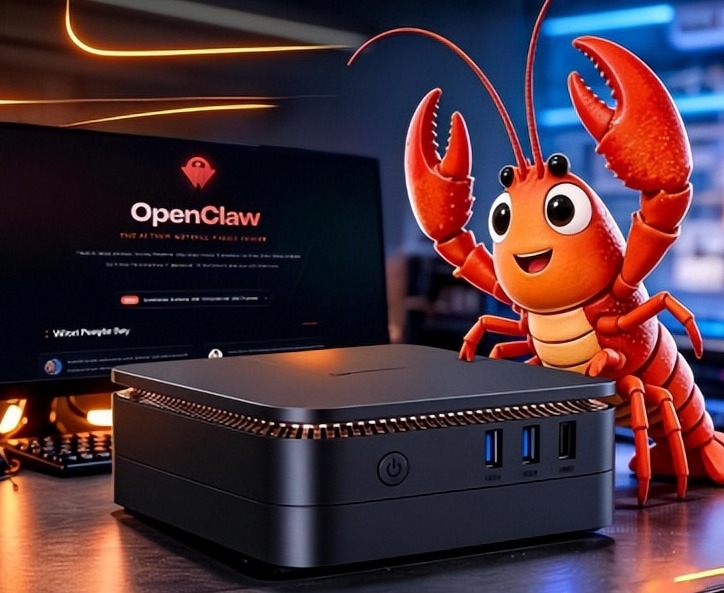
What AI Mini PC Do You Need for Private Local LLM Deployment?
Learn what AI mini PC specs you need for private deployment of local LLMs: memory, NPU, storage, offline capability, and configuration recommendations for 7B–70B models.
Adreamer

© 2012-2025 Copyright Shenzhen Adreamer Technology Co., Ltd.粤ICP备18115621号-2
Contact Adreamer Today for Your Custom Solution & Quote!
© 2012-2025 Copyright Shenzhen Adreamer Technology Co., Ltd.粤ICP备18115621号-2