
Get in Touch
Your Trusted Manufacturer of Laptops & Tablets

WhatsApp Us Directly
+86 13923410269
Email Us
Get in Touch
Your Trusted Manufacturer of Laptops & Tablets

Have you ever needed to quickly work on a document while on the go, but felt constrained by your tablet's virtual keyboard? Have you envied others for their efficient tablet work but didn't know how to achieve it? A crucial question arises: Can modern tablets connect to a mouse and keyboard like traditional computers?

The answer not only hinges on technological feasibility but also represents the true arrival of the mobile work era. In fact, with the continuous evolution of iPadOS, Android, and HarmonyOS, connecting a keyboard and mouse has long since evolved from a technical gimmick to a practical feature that boosts productivity. Here, we'll walk you through a complete guide to connecting a keyboard and mouse to your tablet, from the basics to advanced techniques, to help you unleash the full potential of your device.
Starting with iPadOS 13, Apple has officially added full mouse and keyboard support to the iPad. After multiple iterations, iPadOS 17 has refined this feature to a near-desktop-level experience:
Native Support: No third-party apps required, plug and play.
Pointer Design: The unique circular pointer automatically changes shape based on interface elements.
Gesture Support: Use mouse gestures to switch between multiple tasks, return to the home screen, and more.
Shortcuts: Supports a wide range of Mac-style shortcuts (Cmd+C to copy, Cmd+V to paste, etc.).
Android has supported USB peripheral connections since early versions, but until Android 10, it was not until the 10.1 release that the new standard was introduced. 10 truly perfected mouse support:
Plug and Play: Most modern Android tablets support USB-OTG or Bluetooth connectivity.
Pointer Customization: Adjust pointer speed, scroll direction, and other parameters.
App Compatibility: Most apps are compatible, especially office apps.
Brand Differences: Brands like Samsung, Xiaomi, and Lenovo may offer additional optimizations.
Huawei tablets offer a unique experience under HarmonyOS:
Cross-Device Collaboration: The mouse can seamlessly switch between tablets, phones, and computers.
Multi-Device Control: A single mouse can simultaneously control multiple HarmonyOS devices.
Intelligent Identification: Automatically identifies the connected device type and provides the best experience.
Pros: No cable restrictions, supports multi-device pairing, and consumes low power.
Cons: Requires Bluetooth-enabled device, may experience occasional lag or disconnection.
Usable for: Daily office work, home use, and mobile environments.
Instructions:
Open the tablet's Bluetooth settings.
Put the keyboard and mouse in pairing mode.
Select the corresponding device in the tablet's Bluetooth list.
Once pairing is successful, you can use it.
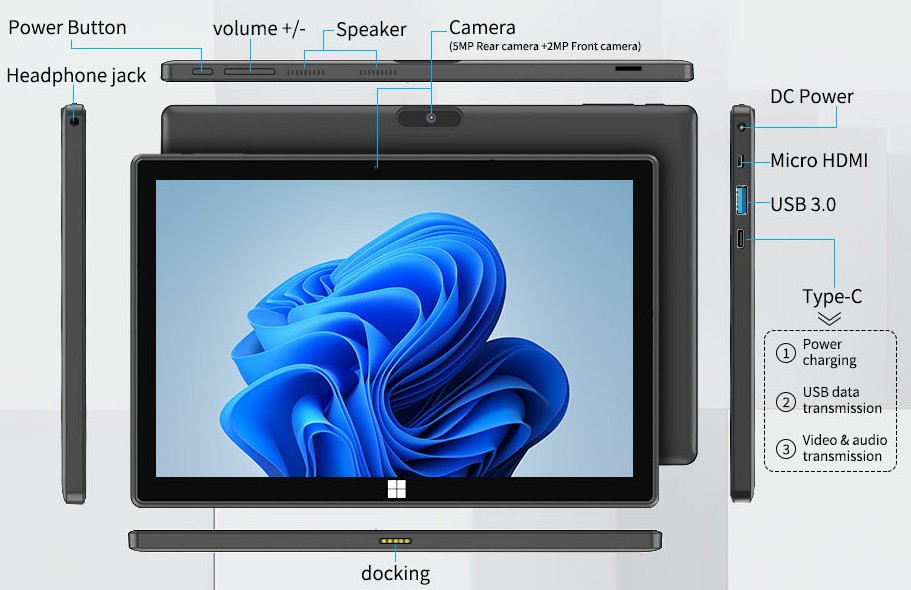
Advantages: Stable connection, no charging required, plug-and-play
Disadvantages: Requires an adapter or docking station, cable constraints
Suitable for: Use in fixed locations, where stability is critical
Instructions:
Connect the keyboard and mouse via a USB adapter or docking station.
The system automatically detects and installs the driver.
You're ready to go.
Advantages: Extremely low latency, stable connection
Disadvantages: Requires a USB port, receiver loss possible
Suitable for: Gaming, precision design work
Pointer Speed and Scrolling Direction Optimization
Different platforms offer pointer settings; it's recommended to adjust them based on your usage habits. The pointer speed may initially be too fast or too slow, so find the sensitivity that suits you best. Natural scrolling can be set to align with or inversely match the touchscreen scrolling direction, depending on your preference. Regarding pointer size, users with low vision can enlarge it. A Complete List of Shortcuts to Boost Efficiency
Mastering shortcuts can greatly improve operational efficiency: Common shortcuts like Ctrl/Cmd+C (Copy) and Ctrl/Cmd+V (Paste) speed up everyday operations. When editing text, use Ctrl/Cmd+A (Select All) and Ctrl/Cmd+Z (Undo) for quick selection and modification. For app switching, Alt+Tab works on Android, while Cmd+Tab works on iPadOS. Additionally, most platforms support taking screenshots via keyboard shortcuts, making it easy to quickly capture screen content. Mouse Gestures and Multi-Finger Operations
iPadOS: Right-click the mouse to bring up the context menu
Android: Middle-clicking the mouse often returns to the home screen
HarmonyOS: Supports a variety of customizable gestures

Extended Use of External Displays
Many tablets support external displays in addition to connecting a keyboard and mouse:
Extended Mode: Use the tablet as a second screen
Mirror Mode: Duplicate the tablet's display
The keyboard and mouse can control content on both screens simultaneously
Keyboard Selection Tips
Size and Layout: Ensure all keys are fully positioned, especially the function keys
Connection Method: Bluetooth is preferred, and consider multi-device switching
Key Travel and Feel: Appropriate key travel provides a better typing experience
Battery Life: Choose a model with long battery life; USB-C charging is preferred
Case Integration: Consider an all-in-one keyboard and case solution, such as the keyboard accessories from Adreamer Huayi Chuangxiang

Key Mouse Selection Tips
Grip Feel: Choose different sizes for different hand sizes
DPI Accuracy: Higher DPI accuracy is better for fine manipulation
Additional Buttons: Customizable side buttons improve efficiency
Battery Life: Bluetooth mice generally have longer battery life
Silent Settings Design: More polite for public use
Recommended keyboard and mouse combinations
Mobile office work: Thin and lightweight Bluetooth keyboard + compact Bluetooth mouse
Stationary use: Full-size keyboard + ergonomic mouse
Budget-constrained: USB keyboard and mouse combo + adapter
High-end option: Original keyboard case + high-end Bluetooth mouse
Word processing and office scenarios
Long-term document editing: Keyboard input is far more efficient than a touchscreen
Spreadsheet data processing: The precise operation of a mouse is irreplaceable
Email processing: Quick reply and archiving
Creative design and content creation
Image editing: Precise selection and control
Video editing: Timeline manipulation and fine-tuning
Art creation: Keyboard shortcuts improve efficiency

Remote desktop and cloud computing
Controlling a remote computer: More natural keyboard and mouse operation
Cloud gaming experience: Get console-like gaming experience
Programming and development: Code writing and debugging
Special needs scenarios
Accessibility: Providing alternatives for users with limited mobility
Public demonstrations: A more professional presentation method
Educational scenarios: Suitable for computer education
①. What if there is no response after connecting?
Check the device battery level.
Re-pair and connect.
Restart the tablet and try again.
②. The mouse pointer is not displaying or is malfunctioning.
Check the cursor settings in Settings.
Try a different USB port or re-pair Bluetooth.
Update the system to the latest version.
③. Keyboard input is delayed or lags.
Reduce interference from Bluetooth devices.
Use the device closer to the device.
Check system resource usage.
④. Specific apps are incompatible.
Check for app updates.
Try changing the input method.
Contact the app developer for feedback.
Industry-Specific Solutions
Latest Blog
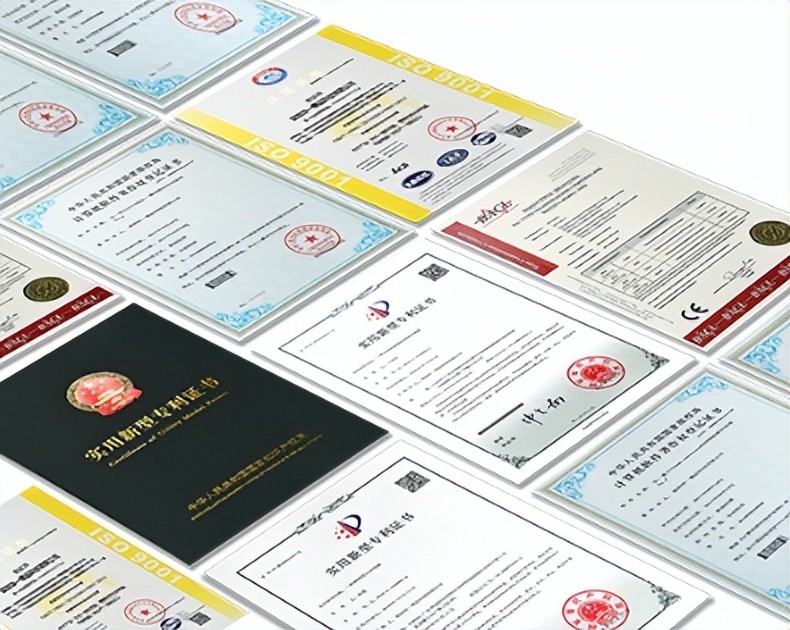
AI Compute Box Bulk Procurement: 3C, CE, FCC Certification Guide
Learn the key certification requirements for bulk buying AI compute boxes. Covers 3C, CE, FCC compliance, common pitfalls, and how to verify certificates to avoid legal risks.

RK3588 vs N100: Which Is Better for Local LLM Deployment?
Compare RK3588 and N100 for running local LLMs. See real-world token speeds, power, memory, software support, and which chip fits your AI workload.

Edge AI Box vs Cloud Server:Which Is Cheaper Long-Term?
A detailed TCO comparison of edge AI boxes and cloud servers. Covers hardware, bandwidth, power, and O&M costs, with break-even analysis and a decision checklist.
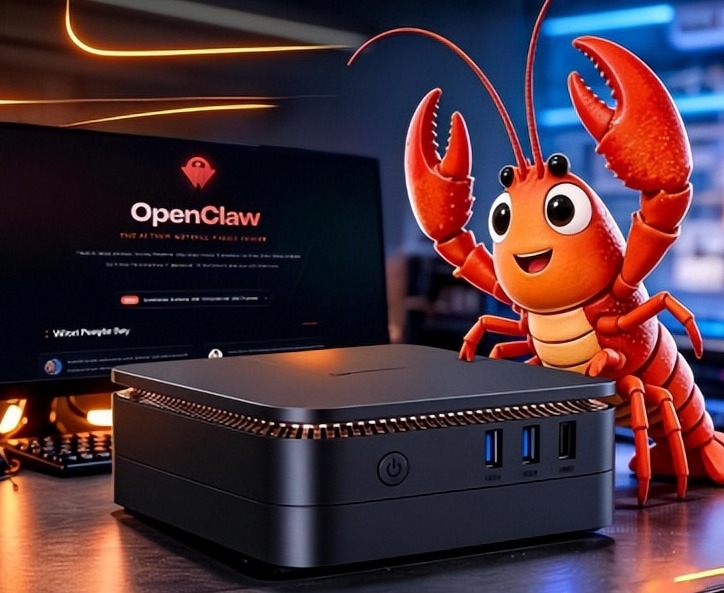
What AI Mini PC Do You Need for Private Local LLM Deployment?
Learn what AI mini PC specs you need for private deployment of local LLMs: memory, NPU, storage, offline capability, and configuration recommendations for 7B–70B models.
Adreamer

© 2012-2025 Copyright Shenzhen Adreamer Technology Co., Ltd.粤ICP备18115621号-2
Contact Adreamer Today for Your Custom Solution & Quote!
© 2012-2025 Copyright Shenzhen Adreamer Technology Co., Ltd.粤ICP备18115621号-2